Make Your Cutouts Look Less Fake
Noise Alpha adds grain exclusively to your transparency channel, making cutouts look less computer-generated. When you key out a green screen or mask a subject, the edge often looks too clean and digital. Adding noise to just the alpha channel fixes this — the main image stays clean while the transparent areas get that organic, worn edge that sells the effect.
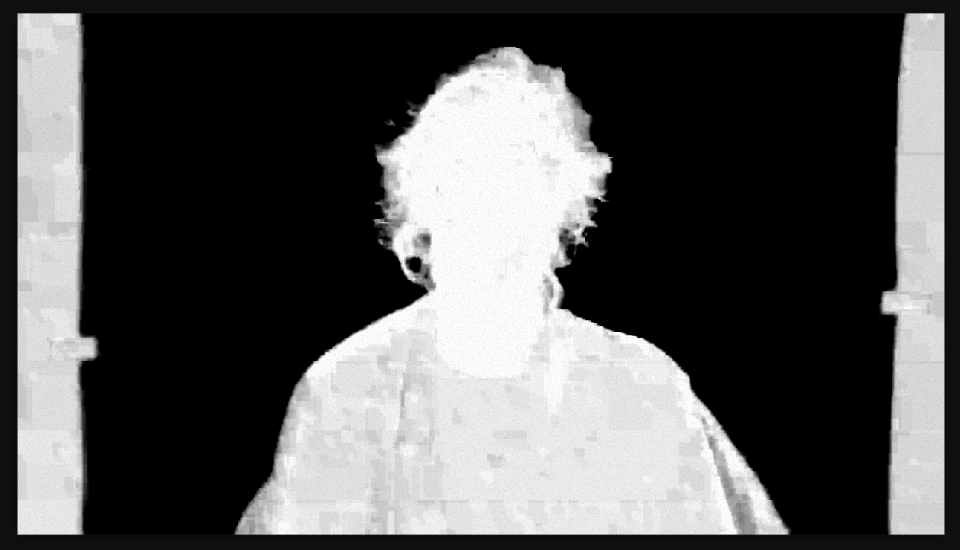
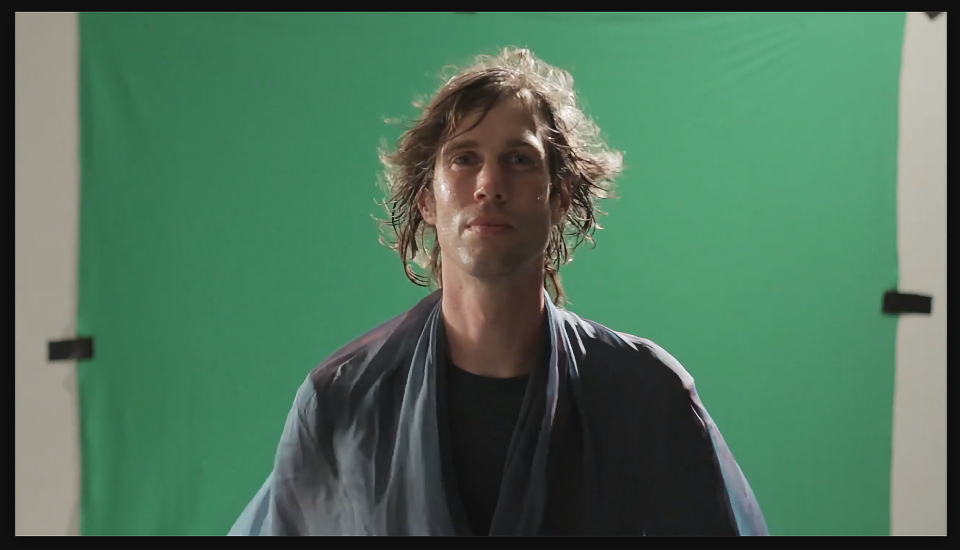
Settings used
- Amount: 8%
Add the effect from FX → Noise & Grain → Noise Alpha. The Amount controls how much grain appears on your transparency edges — 5-10% adds subtle imperfection that looks organic, 15%+ creates obvious texture. Use it after keying to hide that clean, digital edge your green screen pull created.
When to use it
Apply Noise Alpha right after a green screen key (Extract or Linear Color Key) to soften the hard edges your key created. Use it on masked footage where the mask edge looks too perfect. Combine with a slight blur on the key's softness to create really believable composites. If your cutout needs to blend into a textured background, this makes that blend invisible.