Free Green Screen Editor — Full Tutorial
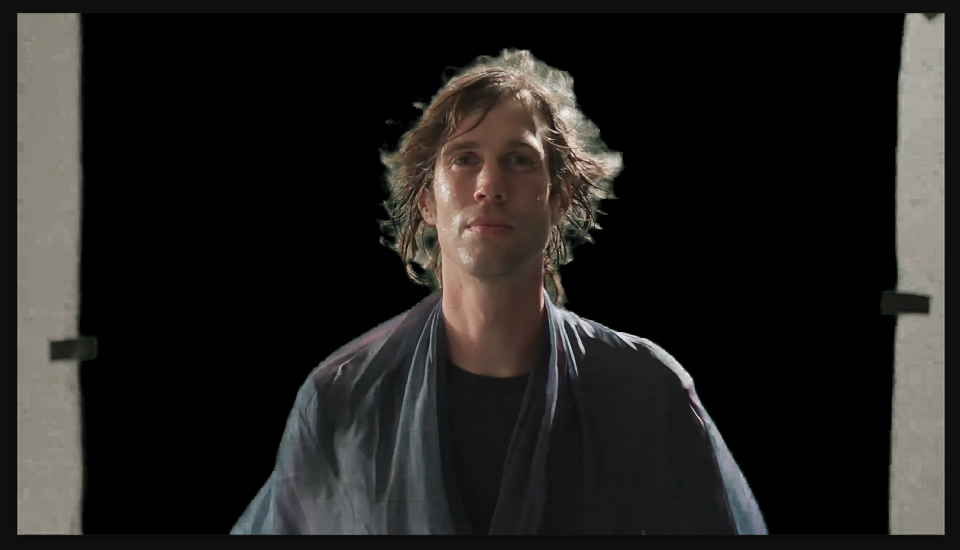
Linear Color Key is your green screen effect. It removes a specific color (green, blue, whatever) and makes it transparent, leaving your subject. It's fast, clean, and handles the toughest green screen shots. Dial in the color picker to your screen's exact green, adjust the threshold for good separation, and feather the edges until the key looks natural.

Settings to adjust
- Key Color: Click picker, select your screen color
- Matching Tolerance: Controls color similarity (increase if green remains, decrease if holes appear in subject)
- Matching Softness: Feathers the matte edge for blending
- Despill: Removes green color spill from your subject
- Clip Black / Clip White: Adjust to refine which tones are transparent vs opaque
- View: Switch to "Matte" to see your key — white = visible, black = transparent
Add the effect from FX → Keying → Linear Color Key. Click the color picker and select your green screen color from a neutral area. Experiment with Matching Tolerance and Matching Softness until the key looks clean — use the Matte view to see exactly what's transparent (black) and visible (white). Adjust Despill to remove green color cast from your subject's edges, and fine-tune Clip Black/White for perfect separation.
When to use it
Use Linear Color Key for any green screen shoot. It's the standard keying tool for studio footage, virtual backgrounds, or any shot where your subject is in front of a solid color background. For best results, light your green screen evenly and have your subject at least 3 feet away from the screen to minimize green spill. After keying, combine with Matte Choker to clean up edges, and add Noise Alpha to the transparency channel for organic-looking cutouts.